Deep Print Head Cleaning
If print quality does not improve by the standard cleaning of the print head, clean the print head deeply. Cleaning the print head deeply consumes more ink than the standard cleaning of the print head, so clean the print head deeply only when necessary.
 Note
Note
-
You can also clean the print head deeply using the computer.
- Cleaning the Print Heads (Windows)
- Cleaning the Print Heads (macOS)
- Items to Prepare
- A sheet of A4 or Letter-sized plain paper
-
Load a single sheet of A4 or Letter size plain paper in the top feed.
After loading the paper, the paper information registration screen for the top feed is displayed.
Select A4 or Letter for Page size and Plain paper for Type, select Register, then press the OK button.
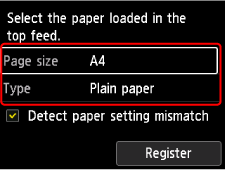
If a message is displayed on the screen, follow the directions in the message to complete registration.
 Important
-
The manual feed tray is not available for the nozzle check pattern print procedure. Be sure to load paper in the top feed.
-
-
Open the paper output tray gently.
Open the output tray extension gently, then pull out the paper output support.
-
Select
 Maintenance on the HOME screen.
 -
Select Deep Cleaning.
The confirmation screen will appear.
-
Select Yes on the cleaning confirmation screen.
-
Select ink group to be cleaned.
-
All colors
-
Pattern 1: GY / PBK / C / R / M
-
Pattern 2: PM / PC / Y / CO / MBK
The printer starts cleaning the print head.
Important-
Do not perform any other operations until the printer completes the cleaning of the print head.
-
-
Check message and select Yes.
The nozzle check pattern will be printed.
-
When the completion message appears, select OK.
-
Check the print result.
Check if there are missing lines in the pattern C or horizontal streaks in the pattern D.
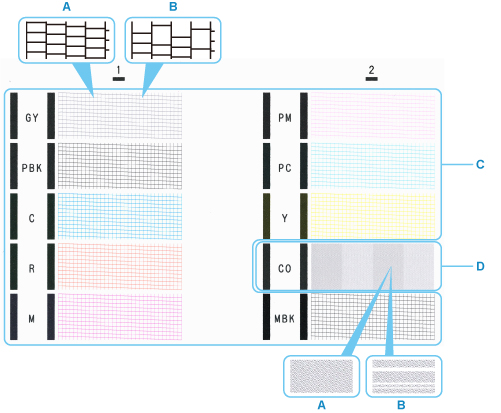
- A: No missing lines/No horizontal streaks
- B: Lines are missing/Horizontal streaks are present
Note-
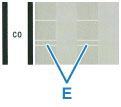
Because CO ink is colorless, its pattern is printed over the black pattern. Check for horizontal streaks (E) in the dark gray bands of the pattern.
Important
-
If a particular color is not printed properly, replace the ink tank of that color.
-
If the problem is not resolved, turn off the power and clean the print head deeply again after 24 hours. Do not unplug the power cord when turning off the power.
-
If the problem is still not resolved, the print head may be damaged. Contact your nearest Canon service center to request a repair.
